
- Home
- >
- Community Archive
- >
- Public Archive
- >
- Archived Discussions (Read Only)
- >
- Scheduling- salon issues

- Subscribe to RSS Feed
- Mark Thread as New
- Mark Thread as Read
- Float this Thread for Current User
- Printer Friendly Page
Scheduling- salon issues
We are having scheduling issues in our salon. There should be a way to customize staff schedules- in a salon there needs to be flexibility. Someone may work Tuesday this week but not 6 weeks from now and it's very hard for the front desk to book future appointments. Also is there not a way to "check in" or show when a client has "checked out" and paid? Our other system highlighted appointments with colors accordingly. These really need to be addressed.



- Subscribe to RSS Feed
- Mark Thread as New
- Mark Thread as Read
- Float this Thread for Current User
- Printer Friendly Page
Hi @hos, welcome to the seller community!
Thanks for bringing this up — I'm sorry to hear about the frustration.
Regarding appointments and flexible schedules, our override hours feature may help. Learn more about it in this post: Square Appointments Update — Override Hours and "Any Available" Staff Booking.
As for the check in/out visibility option — that isn't something that's currently available. Any chance you can reply with a bit more information how this would be helpful for your salon? Rest assured that I'll be sharing your post with our Product Liaison team, who is constantly making improvements based on seller feedback.
In the meantime, we appreciate your flexibility and please let us know if anything else comes up! 🙂
Square Community Program Manager | Square, Inc.
Find step-by-step help in our Support Center
- Mark as New
- Subscribe to RSS Feed
- Permalink
- Report

- Subscribe to RSS Feed
- Mark Thread as New
- Mark Thread as Read
- Float this Thread for Current User
- Printer Friendly Page
I have a question! I own a salon and every time I book the correct time through square calendar and send them notification, example a 1:30 appointment it defaults in a message saying they have a 10:30am or basically always 3 hours before the set appointment. It will say that in their message.
Could someone help!?
- Mark as New
- Subscribe to RSS Feed
- Permalink
- Report

- Subscribe to RSS Feed
- Mark Thread as New
- Mark Thread as Read
- Float this Thread for Current User
- Printer Friendly Page
Hey @Kmoshiek, it sounds like your client might be setup under a different time zone. This is a quick fix! Just follow these steps:
- Login to your Square Dashboard.
- Select the Appointments tab on the left hand side of your screen.
- At the top of the screen click on Clients.
- Click on the name of the desired client.
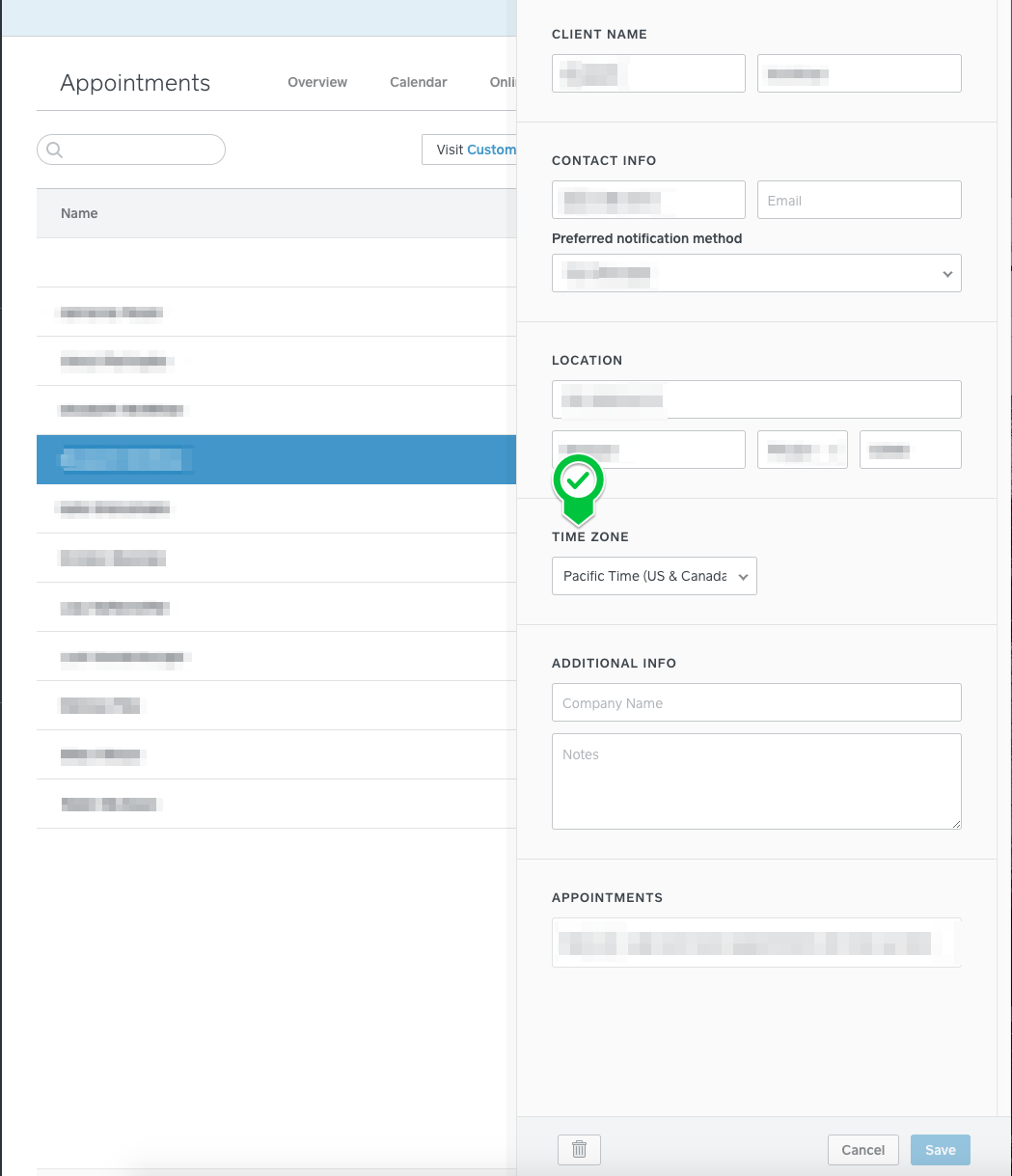
Your screen should look similar to the one above at this point. Simply click on time zone and choose the appropriate selection.
Please let me know if you have any other questions! 😀
- Mark as New
- Subscribe to RSS Feed
- Permalink
- Report

Square Community