
- Home
- >
- Help
- >
- Appointments
- >
- Re: NEED the group class scheduling ability

- Subscribe to RSS Feed
- Mark Thread as New
- Mark Thread as Read
- Float this Thread for Current User
- Bookmark
- Subscribe
- Printer Friendly Page
NEED the group class scheduling ability
PLEASE can there be an option added for the ability to schedule group classes?! It would be so helpful for streamlining online booking and avoiding the minutiae of trying to find a workaround and/or having that be to manually plug-in overlapping appts 😕
- Mark as New
- Bookmark
- Subscribe
- Subscribe to RSS Feed
- Permalink
- Report



- Subscribe to RSS Feed
- Mark Thread as New
- Mark Thread as Read
- Float this Thread for Current User
- Bookmark
- Subscribe
- Printer Friendly Page
Hey there @KMaloney!
I will pass this feature request over to our product team for their visibility and consideration.
However, at this time my suggestion would be to use make use of the Event item in square online where you can set a number of tickets and decide whether you want to charge your customer in advance or not.
P.S. Welcome to the Seller Community ✨
Community Moderator, Square
Sign in and click Mark as Best Answer if my reply answers your question.
- Mark as New
- Bookmark
- Subscribe
- Subscribe to RSS Feed
- Permalink
- Report
- Subscribe to RSS Feed
- Mark Thread as New
- Mark Thread as Read
- Float this Thread for Current User
- Bookmark
- Subscribe
- Printer Friendly Page
Thanks, JJ- the only option I have is to create a personal event. There are no public events and no ability to release a certain number of tickets.
- Mark as New
- Bookmark
- Subscribe
- Subscribe to RSS Feed
- Permalink
- Report
- Subscribe to RSS Feed
- Mark Thread as New
- Mark Thread as Read
- Float this Thread for Current User
- Bookmark
- Subscribe
- Printer Friendly Page
My apologies for the confusion but what I meant to say was to create an Event item in Square Online (not in Square Appointments) and this would allow you to set the desired amount of tickets that can be sold.
Here's how to set up an event on Square Online:
To get started, go to your Square Online Overview page and select Items > Site Items. Then select Add Item.
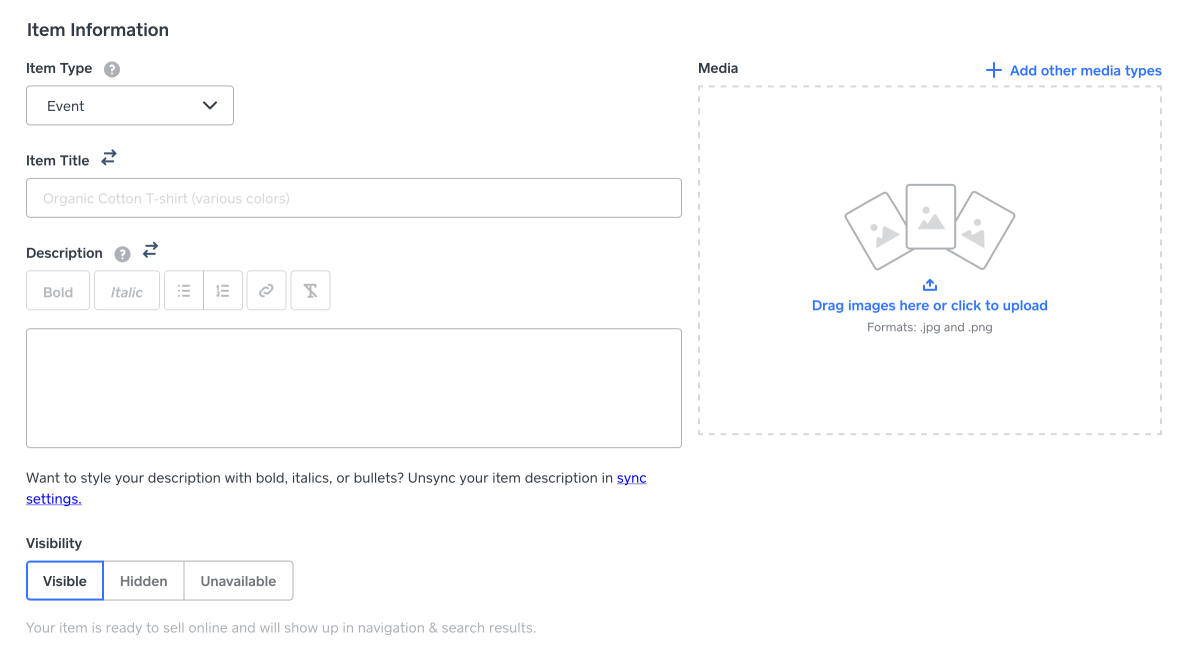
Choose which type of item you want to add from the drop-down menu, and enter a title and description for the item. You can also add one or multiple photos.
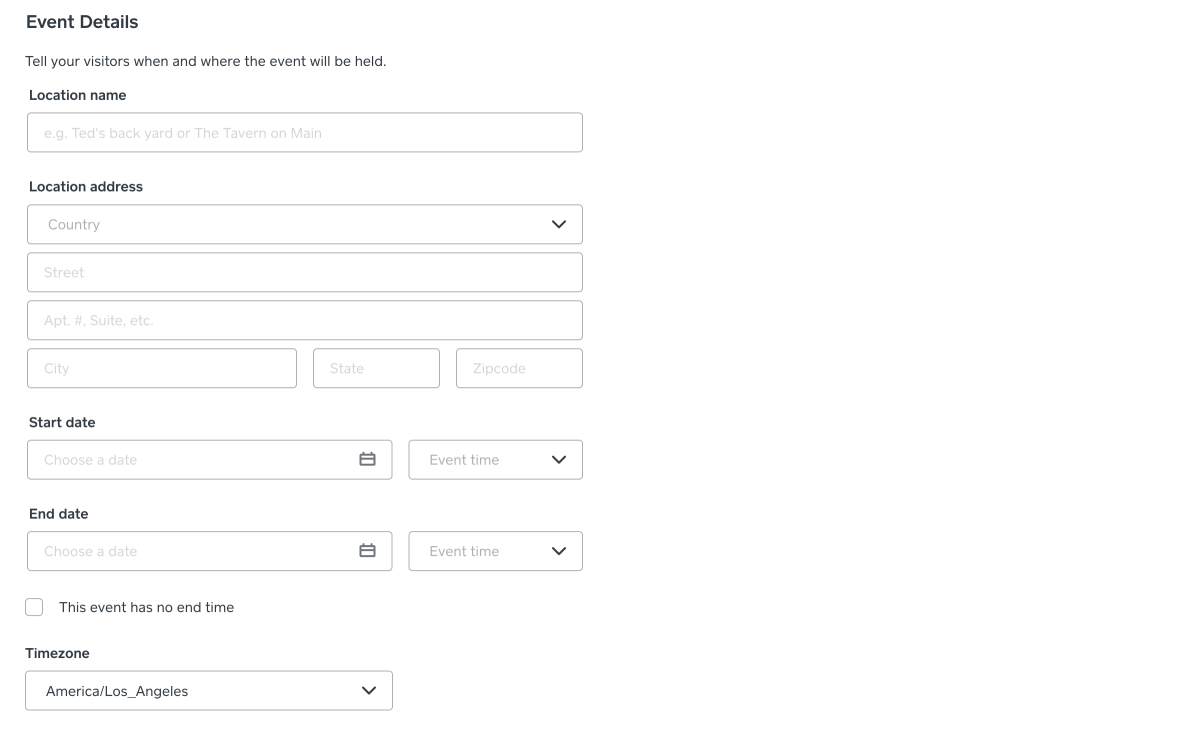
Membership and service items don't have special fields to fill out, but if you’re creating an event item, scroll down to the event details section and enter the location, time, and date for your event.
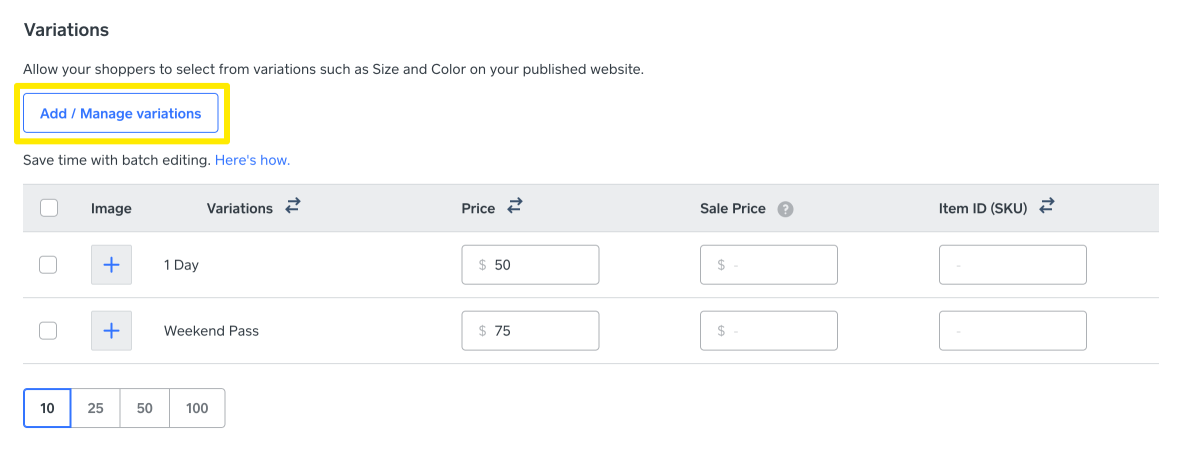
Next, scroll down to the variations section and set a price for your item. If your item has only one option, you can edit the existing variation to change the name and set a single price. You can also select Add variation or Manage variations to create additional options with different names and prices.
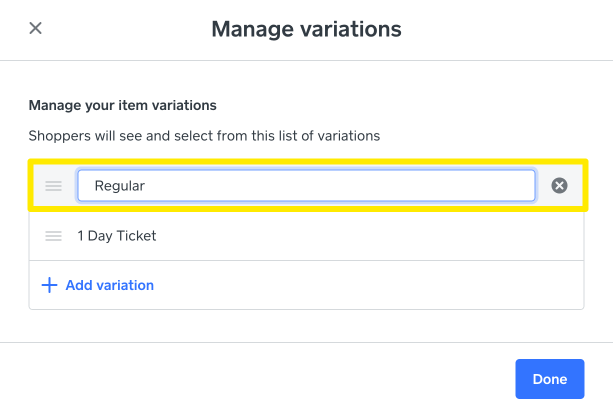
For example, you might be running a multi-day event and offer tickets for one day and full weekend passes. These options allow you to sell both kinds of tickets from a single item. You may have a default option called “Regular,” but you can change the name by selecting it to edit. Enter as many different options as you need and select Done. Learn more about adding selectable options and variations to your items in Square Online.
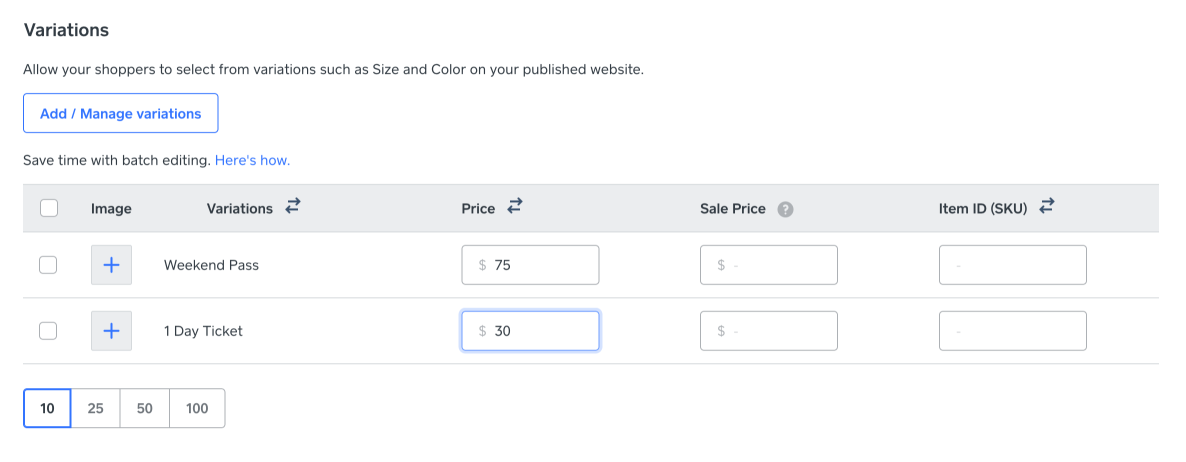
Next, set a price for each of your options. Regular prices will sync back to Square, but sale prices are only applicable to Square Online.
If you’d like buyers to customize this item, scroll down to the modifiers section and select Manage modifiers. You can create a new modifier for this item, or apply any pre-existing modifiers. Learn more about adding modifiers to your items in Square Online.
At the bottom of the page, enter SEO details for this item, and select Save when finished. Learn more about how to optimize your items and categories for SEO.
I hope this information is helpful @KMaloney.
Community Moderator, Square
Sign in and click Mark as Best Answer if my reply answers your question.

Square Community
Square Products