

Square
🆕 Subscriptions: pause and resume

Hello Square Community! 👋 Managing customer subscriptions is now easier than ever - both you and your customer have the option to pause and resume subscriptions.


To pause or resume a subscription:

1. Go to Subscriptions > Subscriptions on your Square Dashboard.

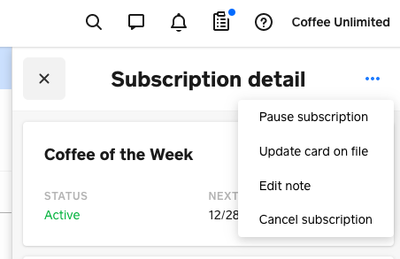
2. Click on a subscription you want to manage.

Ryan_M_0-1643821406650.png


3. To pause a subscription, click on the “…” button and choose Pause subscription. You can pause on a specific date, indefinitely, or by billing cycles like weeks, months, etc. 

4. To resume a subscription, click on the “...” button and choose Resume subscription. You can resume on a specific date, immediately, or on the next billing date.

5. Click Save.


Your customer will then receive a notification that their subscription was paused or resumed. If they want to pause, resume, or cancel the subscription themselves, they can follow the Manage Subscription link included in all subscription notification emails.


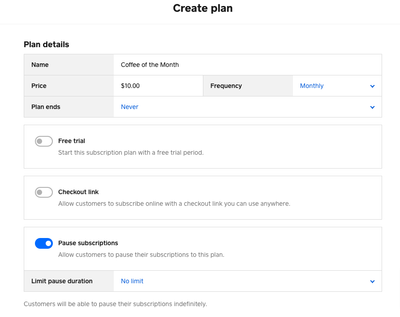
Note: When creating a plan, you can choose whether or not you want to allow pauses for any subscribers by toggling on or off the Pause subscriptions option.


Ryan_M_1-1643821406632.png


➡️ Get Started with Subscriptions in Dashboard

1 Reply
Similar Threads
🆕 Improved checkout accuracy with sound feedback
🆕 Reconciliation Report CSV export now available
🆕 Search and sell faster with a connected keyboard
🇨🇦 Fresh off the line: Square’s latest features to transform your restaurant operations